 Skip to content
How to Install Apollo Group TV: 2026 Guide for All Devices
Streaming entertainment has transformed how we consume content, and Apollo Group TV has emerged as a popular choice for viewers seeking diverse programming options. Whether you’re using a Firestick, Smart TV, Android device, or iOS system, this comprehensive guide walks you through every step of the installation process.
What is Apollo Group TV?
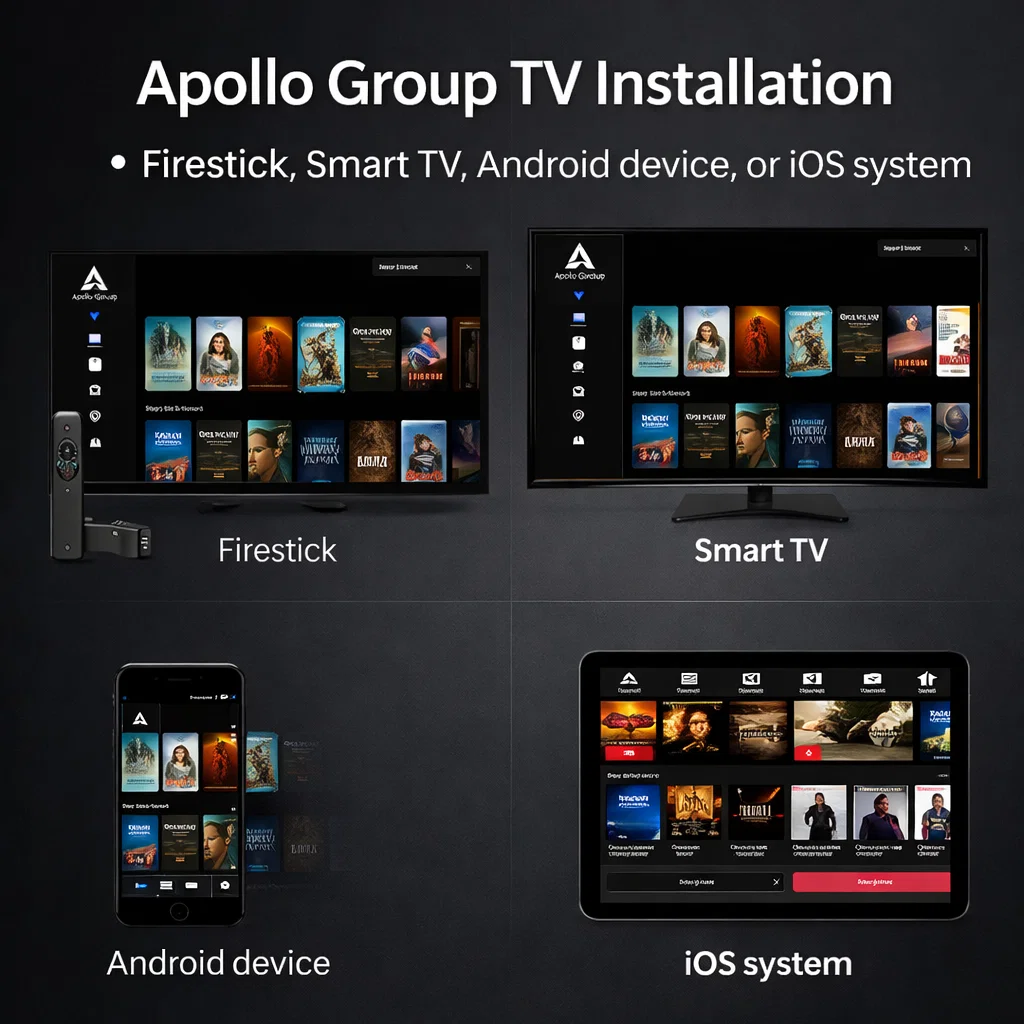
Apollo Group TV is a streaming service that provides access to live television channels, movies, series, and on-demand content across multiple devices. The platform has gained popularity for its user-friendly interface and compatibility with various streaming devices, making it accessible to a wide range of users.
The service operates through IPTV (Internet Protocol Television) technology, delivering content over internet connections rather than traditional cable or satellite methods. This approach offers flexibility and convenience, allowing users to watch their favorite programs on multiple devices from virtually anywhere with a stable internet connection.
System Requirements and Compatibility
Before beginning the installation process, ensure your device meets the basic requirements for optimal performance. Apollo Group TV works across numerous platforms, but each has specific considerations.
Your internet connection plays a crucial role in streaming quality. For standard definition content, a minimum speed of 10 Mbps is recommended, while high definition streaming performs best with 25 Mbps or higher. For 4K content, aim for connections of 50 Mbps or faster to avoid buffering and interruptions.
Storage requirements vary by device. Most installations need approximately 100-200 MB of free space for the application itself, though additional space may be necessary for cached content and updates. Ensure your device has sufficient storage before proceeding.
Installing Apollo Group TV on Amazon Firestick
The Amazon Firestick remains one of the most popular devices for Apollo Group TV installation due to its affordability and ease of use. The process involves several steps but can be completed within minutes.
Preparing Your Firestick
Start by navigating to your Firestick settings. From the home screen, scroll to the right and select the gear icon labeled “Settings.” Within the settings menu, locate “My Fire TV” or “Device” depending on your Firestick generation.
Once inside the device settings, select “Developer Options.” Here you’ll find the option to enable “Apps from Unknown Sources” or “Install Unknown Apps.” Toggle this setting to ON. The system will display a warning message about security risks; acknowledge this by selecting “Turn On.”
This step is essential because Apollo Group TV is not available through the official Amazon App Store, and enabling this setting allows installation of third-party applications.
Installing the Downloader App
The Downloader app serves as your gateway to installing Apollo Group TV. Return to your Firestick home screen and select the search icon (magnifying glass) at the top left. Type “Downloader” and select the official Downloader app from the results.
Install the Downloader app by selecting “Get” or “Download.” Once installed, open the application. You may be prompted to allow Downloader to access files on your device; grant this permission.
Downloading and Installing Apollo Group TV
With Downloader open, you’ll see a URL field on the home screen. This is where you’ll enter the download link for Apollo Group TV. Contact your Apollo Group TV service provider for the official download URL, as this link may change periodically.
Enter the provided URL carefully, then select “Go” or press enter. The download process will begin automatically. Depending on your internet speed, this may take anywhere from 30 seconds to a few minutes.
Once the file downloads completely, the installation screen appears automatically. Select “Install” and wait for the process to complete. When you see “App Installed,” the setup is complete.
Select “Done” rather than “Open” initially. You can now delete the installation file to free up space by selecting “Delete” when prompted by Downloader.
First Launch and Configuration
Exit Downloader and return to your Firestick home screen. Navigate to “Settings,” then “Applications,” and finally “Manage Installed Applications.” Scroll through your installed apps until you find Apollo Group TV.
For easier access in the future, move Apollo Group TV to your home screen. You can do this by highlighting the app, pressing the menu button (three horizontal lines) on your remote, and selecting “Move to Front.”
Launch Apollo Group TV for the first time. The app will prompt you to enter your login credentials or activation code provided by your service provider. Enter this information carefully, as it’s case-sensitive.
Setting Up Apollo Group TV on Smart TVs
Smart TV installation varies slightly depending on your television’s operating system, but the general principles remain consistent across platforms.
Android TV Installation
Smart TVs running Android TV (including many Sony, Philips, and TCL models) can install Apollo Group TV through similar methods as the Firestick.
Navigate to your TV’s settings using your remote. Look for “Security & Restrictions” or “Device Preferences.” Enable the option for “Unknown Sources” or installation from unknown sources.
You’ll need to install a file manager or downloader app. Popular options include File Commander or X-plore File Manager, which can be found in the Google Play Store on your Android TV.
Once you’ve installed a file manager, use it to navigate to the Apollo Group TV download URL provided by your service. Download the APK file and select it to begin installation. Follow the on-screen prompts to complete the setup.
Samsung Smart TV (Tizen OS)
Samsung Smart TVs running Tizen OS require a different approach, as they don’t natively support Android applications. The most reliable method involves using screen mirroring or casting from another device that has Apollo Group TV installed.
Alternatively, you can access Apollo Group TV through your Samsung TV’s web browser if your service provider offers a web-based version. Navigate to the provided URL using your TV’s browser and log in with your credentials.
LG Smart TV (webOS)
Similar to Samsung TVs, LG Smart TVs running webOS have limited direct installation options. The recommended approach is to use an external streaming device like a Firestick or Android box connected to your LG TV.
Some users successfully access Apollo Group TV services through LG’s built-in web browser by navigating to a web player version of the service. Check with your Apollo Group TV provider to see if this option is available for your subscription.
Installing Apollo Group TV on Android Devices
Android smartphones and tablets offer straightforward installation since they support APK files natively. This flexibility makes Android devices excellent companions for on-the-go streaming.
Phone and Tablet Setup
Open your Android device’s settings and navigate to “Security” or “Privacy.” Look for the option labeled “Install Unknown Apps” or “Unknown Sources.” You may see a list of apps with permission toggles; enable this setting for your web browser or file manager.
Using your mobile browser, navigate to the Apollo Group TV download page provided by your service. Download the APK file. Your browser may warn you about the file; select “OK” or “Download Anyway” to proceed.
Once downloaded, you’ll see a notification. Tap this notification to begin installation, or navigate to your Downloads folder using a file manager. Tap the APK file and select “Install.”
After installation completes, you can find Apollo Group TV in your app drawer alongside your other applications. Launch it and enter your login credentials when prompted.
Android Box Installation
Android TV boxes follow the same general process as Firestick installation. Enable unknown sources in your security settings, install a downloader app or file manager, then download and install the Apollo Group TV APK.
Many Android boxes come with file managers pre-installed, which can simplify the process. Look for apps like ES File Explorer, File Manager+, or similar tools already on your device.
Setting Up Apollo Group TV on iOS Devices
iOS installation differs significantly from Android due to Apple’s strict app policies and security measures. Apollo Group TV is not available through the official App Store, so alternative methods are necessary.
Using Third-Party App Stores
Some users access Apollo Group TV on iOS devices through third-party app stores or enterprise certificate services. These methods involve installing a profile that allows apps outside the official App Store.
Be aware that Apple periodically revokes certificates for third-party app stores, which may cause installed apps to stop working temporarily until certificates are renewed. This is an inherent limitation of iOS installation methods for unofficial apps.
Web Player Alternative
The most reliable method for iOS users often involves accessing Apollo Group TV through a web-based player in Safari or another iOS browser. Your service provider can supply you with a web player URL that works on iOS devices.
Bookmark this URL in your browser for easy access. While this method doesn’t provide the full app experience, it offers stable access to your content without worrying about certificate revocations.
Screen Mirroring Option
Another approach involves using an iPad or iPhone to control content playing on another device. Install Apollo Group TV on a Firestick or Android device, then use AirPlay to mirror or cast content to your Apple TV or compatible television.
This method requires additional hardware but provides a stable, long-term solution that isn’t affected by iOS restrictions.
Optimizing Your Apollo Group TV Experience
After successful installation, several optimization steps can enhance your viewing experience and ensure smooth performance across all your devices.
Network Configuration
A stable internet connection is fundamental to quality streaming. If you experience buffering or connection issues, consider these improvements:
Position your router closer to your streaming device or use WiFi extenders to improve signal strength. Wired Ethernet connections offer superior stability compared to wireless options when possible.
Reduce network congestion by limiting the number of devices using your internet simultaneously during peak viewing times. Close unnecessary applications running in the background on your streaming device.
Video Quality Settings
Apollo Group TV typically includes quality settings that let you balance picture clarity with bandwidth usage. Access these settings through the app’s menu, often found by pressing the menu button during playback.
For slower connections, selecting standard definition reduces buffering. Users with faster internet can enjoy HD or even 4K content where available. Some apps include an “Auto” setting that adjusts quality based on your current connection speed.
Buffering Solutions
If you encounter frequent buffering despite a good internet connection, try clearing the app’s cache. On Android devices and Firesticks, navigate to Settings > Applications > Manage Installed Applications > Apollo Group TV > Clear Cache.
Reducing video quality temporarily can also help identify whether buffering stems from connection speed or server issues. If lower quality streams smoothly but higher quality buffers, your internet speed may be the limiting factor.
EPG and Channel Organization
The Electronic Program Guide (EPG) displays scheduling information for live channels. Some versions of Apollo Group TV allow EPG customization, letting you organize channels into favorites or categories.
Spend time organizing your channel list during initial setup. Create favorite lists for frequently watched channels, making navigation faster during regular use.
Troubleshooting Common Installation Issues
Even with careful following of instructions, you may encounter obstacles during installation or use. Understanding common problems and their solutions saves time and frustration.
Installation Failures
If an APK file fails to install on Android or Firestick, verify that you’ve enabled installation from unknown sources. Double-check that you downloaded the complete file by comparing the file size with what your provider specifies.
Corrupted downloads can cause installation failures. Delete the downloaded APK and download it again from the official source. Ensure stable internet during the download process.
Login and Activation Problems
Incorrect credentials are the most common cause of login failures. Verify that you’re entering your username and password exactly as provided, paying attention to capitalization and special characters.
Some services use activation codes instead of traditional logins. These codes typically expire after a certain period, so contact your provider if your code isn’t working.
App Crashes or Won’t Open
Force-stopping and clearing the app cache often resolves crashes. On Firestick or Android, go to Settings > Applications > Manage Installed Applications > Apollo Group TV, then select “Force Stop” followed by “Clear Cache.”
If crashes persist, you may need to uninstall and reinstall the application. This fresh installation often resolves corrupted file issues.
No Channels or Content Displaying
If the app opens but shows no content, verify your internet connection is working by testing other apps or websites. Check with your service provider to ensure your subscription is active and hasn’t expired.
Server maintenance or outages can temporarily affect content availability. Wait an hour and try again, or check social media and forums for reports of widespread issues.
Video Playback Issues
Choppy playback or stuttering usually indicates insufficient bandwidth. Run a speed test on your device to confirm your internet speed meets requirements for your selected quality setting.
Try switching to a different server if your Apollo Group TV version offers multiple server options. Some apps include server selection in the settings or playback menu.
Legal and Safety Considerations
Understanding the legal landscape surrounding streaming services helps you make informed decisions about content consumption.
Service Legitimacy
Verify that your Apollo Group TV subscription comes from a legitimate provider. Reputable services have clear terms of service, customer support channels, and transparent pricing.
Be cautious of extremely cheap subscriptions that seem too good to be true. These may involve unauthorized content redistribution, which can carry legal risks depending on your jurisdiction.
Security Best Practices
Only download Apollo Group TV APK files from official sources provided by your verified service provider. Third-party download sites may distribute modified versions containing malware or spyware.
Keep your streaming device’s operating system updated with the latest security patches. Enable your device’s built-in security features and consider using reputable antivirus software on Android devices.
VPN Usage
Some users choose to use Virtual Private Networks (VPNs) while streaming for privacy reasons. If you decide to use a VPN, select a reputable provider with strong encryption and a no-logs policy.
Be aware that VPNs can sometimes reduce streaming speeds due to encryption overhead and server distance. Choose VPN servers geographically close to you for better performance.
Maintaining and Updating Apollo Group TV
Regular maintenance ensures your Apollo Group TV installation continues running smoothly over time.
App Updates
Unlike official app stores, sideloaded applications don’t update automatically. Check with your service provider periodically for newer versions of the Apollo Group TV app.
When updates are available, download the new APK file and install it over your existing installation. Your settings and login information typically remain intact, though you may need to sign in again after major updates.
Clearing Cache Regularly
Streaming apps accumulate cache data over time, which can slow performance and consume storage. Clear your Apollo Group TV cache monthly or whenever you notice performance degradation.
On most devices, this process doesn’t delete your settings or login information, only temporary files that can be recreated during use.
Subscription Management
Keep track of your subscription renewal dates to avoid service interruptions. Many providers send email reminders, but maintaining your own calendar ensures you’re never caught off guard.
Review your subscription features periodically. Providers sometimes add new channels or features that existing subscribers can access by updating their apps or refreshing their playlists.
Advanced Features and Customization
Apollo Group TV often includes features beyond basic streaming that enhance the viewing experience.
Parental Controls
Many versions include parental control options that let you restrict access to certain content categories or channels. Look for these settings in the app’s main menu under “Settings” or “Parental Controls.”
Setting up a PIN code prevents children from accessing restricted content without supervision. Change this PIN periodically and avoid sharing it.
Multi-Device Streaming
Check your subscription terms to understand how many simultaneous streams your plan allows. Some providers permit multiple devices to stream concurrently, while others limit you to one stream at a time.
If you need multi-device support, consider upgrading your subscription or purchasing additional connections from your provider.
Recording and Playback Features
Select Apollo Group TV configurations include catch-up TV or cloud DVR functionality, allowing you to record or replay previously aired content.
These features require additional server resources and may only be available on premium subscription tiers. Consult your provider’s documentation to understand what’s included with your plan.
Frequently Asked Questions
Is Apollo Group TV legal to use?
The legality of IPTV services depends on whether the provider has proper licensing for the content they distribute. Legitimate IPTV providers obtain broadcasting rights for channels and content they offer. Always verify that your Apollo Group TV subscription comes from a licensed provider. Using services that redistribute content without authorization may violate copyright laws in your jurisdiction.
Why isn’t Apollo Group TV available in the official app stores?
Many IPTV services aren’t listed in official app stores due to Apple’s and Google’s strict content policies and licensing verification requirements. This doesn’t necessarily indicate illegitimacy, but it does mean users must sideload applications. Always ensure you’re downloading from your official service provider’s recommended source.
Can I use Apollo Group TV on multiple devices with one subscription?
This depends entirely on your subscription plan. Some providers allow simultaneous streaming on multiple devices, while others limit you to one device at a time. Check your subscription details or contact customer support to understand your plan’s device limitations. Multi-device plans typically cost more than single-device subscriptions.
What internet speed do I need for Apollo Group TV?
For standard definition content, aim for at least 10 Mbps. High definition streaming requires 25 Mbps or higher. If you plan to watch 4K content, you’ll need 50 Mbps or faster. These are minimum recommendations; faster speeds provide more buffer against network fluctuations and allow multiple devices to stream simultaneously.
Why does the app keep buffering even with fast internet?
Buffering can occur for several reasons beyond internet speed. Server overload during peak hours can cause delays. Your device may have insufficient processing power or memory. WiFi signal interference or distance from your router can create instability. Try connecting via Ethernet cable, closing other apps, clearing the cache, or selecting a lower quality setting to identify the cause.
How do I fix “No Stream Available” errors?
This error typically indicates the content source is temporarily unavailable. The channel may be offline for maintenance, experiencing technical difficulties, or your subscription may have expired. Verify your subscription status is active, check your internet connection, and try a different channel to see if the issue is widespread or limited to specific content.
Can I watch Apollo Group TV while traveling internationally?
This depends on your provider’s geographic restrictions and licensing agreements. Some services are region-locked and won’t work outside specific countries. Using a VPN set to your home country may allow access, but this could violate your provider’s terms of service. Check with your provider before traveling to understand limitations.
How often should I update the Apollo Group TV app?
Update whenever your provider releases a new version, typically every few months. Updates often include bug fixes, security improvements, new features, and channel lineup changes. Join your provider’s communication channels or check their website monthly to stay informed about available updates.
What should I do if Apollo Group TV stops working after an iOS update?
iOS updates sometimes break third-party app installations by revoking enterprise certificates. If this happens, you’ll need to reinstall the app using updated certificates from your provider. Alternatively, switch to the web player version which isn’t affected by iOS updates. This is a known limitation of sideloading apps on iOS devices.
Is a VPN necessary for using Apollo Group TV?
A VPN isn’t strictly necessary but some users prefer the additional privacy layer. If your provider operates legally in your jurisdiction and you’re comfortable with your internet service provider seeing your streaming activity, a VPN may be unnecessary. However, VPNs can provide privacy benefits and sometimes help bypass geographic restrictions.
Why do some channels have better quality than others?
Channel quality depends on the source stream your provider receives. Some broadcasters provide high-definition feeds while others only offer standard definition. Additionally, popular channels may have more bandwidth allocated to them. If specific channels consistently display poor quality, report this to your provider as they may be able to improve the source.
Can I use Apollo Group TV with Chromecast or AirPlay?
Many versions of Apollo Group TV support casting to Chromecast or AirPlay to Apple TV. Look for the cast icon within the app during playback. If native casting isn’t supported, you can mirror your entire device screen to your TV, though this may consume more battery and processing power than direct casting.
What happens if I forget my login credentials?
Contact your Apollo Group TV provider’s customer support for credential recovery. Legitimate providers have account recovery processes in place. Be prepared to verify your identity through the email or payment method associated with your account. Never share your credentials with third parties claiming to help with recovery.
How much data does streaming use?
Data consumption varies by quality setting. Standard definition uses approximately 1 GB per hour, high definition uses 3 GB per hour, and 4K content can consume 7 GB per hour or more. If you have limited data or bandwidth caps, monitor your usage and consider lower quality settings to conserve data.
Can I record content from Apollo Group TV?
Recording capabilities depend on your specific app version and subscription plan. Some providers offer cloud DVR or catch-up services as premium features. Using third-party screen recording software may violate your provider’s terms of service. Check your subscription features and terms before attempting to record content.
Conclusion
Apollo Group TV installation across Firestick, Smart TV, Android, and iOS platforms provides flexible access to diverse streaming content. By following this comprehensive guide, you can successfully set up the service on your preferred devices while understanding optimization techniques and troubleshooting common issues.
Remember that streaming quality depends heavily on your internet connection and device capabilities. Regular maintenance, including app updates and cache clearing, keeps your installation running smoothly. Always use official sources for downloads and verify that your service provider operates legitimately.
Whether you’re setting up your first IPTV service or adding Apollo Group TV to your existing streaming ecosystem, the detailed instructions provided here cover every aspect of installation and use. Take time to explore the app’s features, customize settings to your preferences, and enjoy the convenience of modern streaming technology.
